
LM Studio is a program that lets you use language models like Qwen, Gemma, or gpt-oss directly on your PC. By the end of this guide, you’ll have LM Studio installed, chosen a model that fits your graphics card, and had your first chat. Your prompts never leave your computer.
What you need
- Windows 10 or 11 on an x64 PC. The processor must support the AVX2 instruction set. Nearly all processors from the last few years do. Windows PCs with an ARM chip (for example Snapdragon X Elite) are also supported.
- At least 16 GB RAM (RAM) is recommended.
- A graphics card with at least 4 GB dedicated VRAM (VRAM) is recommended. With 8 GB or more, it’s much more fun.
- Free storage space for the models: depending on the model, 5 to 20 GB, preferably more.
- Internet for downloading the program and the model. After that, chatting works offline too.
Tip: You can see whether your processor supports AVX2 on the manufacturer page for your processor model. Alternatively, the HWiNFO program shows the supported instruction sets.
1. Download and install LM Studio
- Open lmstudio.ai/download in your browser.
- Click the Windows download. In October 2026, that is version 0.4.26.
- Start the downloaded
.exefile and follow the installer.
On the download page, there is also a second program called Bionic. It’s an AI agent from the same developers. You don’t need it for this guide. Download only LM Studio.
Important: If Windows says “Windows protected your PC” even though the file is safely from lmstudio.ai, our page SmartScreen or Defender blocks the installer can help.
2. First launch
Start LM Studio from the Start menu. On the first launch, LM Studio shows a few intro steps. Depending on the version, it may already suggest a first model. You can accept the suggestion or skip it. In this guide, you’ll choose the model yourself so it definitely fits your graphics card.
After that, you’ll see the main window. On the left is a sidebar with the most important sections. For now, these three are enough:
| Section | What it’s for | Shortcut |
|---|---|---|
| Chat | Write with the loaded model | – |
| Discover | Search for and download models | Strg + 2 |
| My Models | Manage downloaded models | – |
Tip: LM Studio is also available in German. You can change the language in Settings (
Strg+,) under Language. This guide uses the English labels. In German, some menu items are called something else.
LM Studio has two views: User shows only what you need and sets many things automatically. Developer shows all settings. You can turn on Developer mode under Settings > Developer. For now, the simple view is enough. For the settings in step 6, you may need Developer mode.
3. Find a model
Open Discover (Strg + 2). There is a search field at the top. You can search for a name, for example qwen3.5, gemma, or gpt-oss. A full Hugging Face address also works in the search field.
The models come from Hugging Face. On Windows, LM Studio uses the GGUF format. This is a file that contains the entire model.
Which model size fits your graphics card?
Rule of thumb: The model file should be smaller than your VRAM. On top of that, you need memory for the chat history (context): the longer the conversation, the more it needs. At KI-Heimlabor, we estimate about 1 GB for around 8,000 tokens (how we calculate this). If the model fits entirely in VRAM, it responds quickly. If part of it sits in RAM, it gets much slower.
These models are available in the official LM Studio catalog. The sizes shown are the download sizes LM Studio gives:
| Your VRAM | Good fit | Download | Note |
|---|---|---|---|
| 8 GB | Qwen3 8B | 4.6 GB | fits comfortably, plenty of room for context |
| Qwen3.5 9B | 7.0 GB | tight, can understand images | |
| 12 GB | Qwen3 14B | 8.4 GB | fits well |
| Gemma 3 12B | 10.7 GB | tight, understands images | |
| Qwen3.5 9B | 7.0 GB | fits comfortably | |
| 16 GB | gpt-oss-20b | 12.0 GB | according to LM Studio, suitable for 16 GB |
| Mistral Small 3.2 24B | 14.3 GB | tight, understands images | |
| Gemma 4 26B A4B | 15.6 GB | very tight, see note about MoE | |
| 24 GB | Qwen3.5 27B | 17.0 GB | strong, understands images |
| Gemma 4 31B | 19.0 GB | strong, understands images | |
| Qwen3 32B | 18.7 GB | fits well | |
| Qwen3.5 35B-A3B | 21.0 GB | MoE, very fast |
Our VRAM calculator can tell you more about how much memory a model needs.
Tip: Models with “A3B” or “A4B” in the name are MoE models. For each word, only a small part of the model computes. That’s why they often stay reasonably fast even if part of them sits in RAM. One example is Qwen3 30B-A3B (17.4 GB) on a 12 GB or 16 GB card.
License: According to the LM Studio catalog, Qwen3, Qwen3.5, Gemma 4, gpt-oss, and Mistral Small are under Apache 2.0. Gemma 3 has its own Gemma license. The usage restrictions in these licenses also apply privately. If you use results for business, read the license on the model page.
4. Choose the right variant and download it
In Discover, click a model. You’ll then see details and download options. Many models are available in multiple variants with names like Q4_K_M, Q6_K, or Q8_0.
The “Q” stands for quantization. These are smaller copies of the same model. The smaller the number, the smaller the file, but the more quality you lose. LM Studio recommends choosing a variant with 4-bit or more if your computer can handle it. Q4_K_M is a good starting point.
Next to the variants, LM Studio shows a note saying whether the model will likely fit entirely in your graphics card, only partially, or is probably too large. The exact wording depends on the version. It’s best to choose a variant that fits entirely in VRAM.
Start the download. LM Studio shows the progress. For 5 to 20 GB, this can take from a few minutes to over an hour depending on your connection.
Tip: If drive C: is getting tight, you can change the model location in My Models. It’s best to do that before your first big download.
5. Load the model and chat
- Open the Chat section.
- Open the model picker at the top. You can also do this with
Strg+L. - Select your downloaded model.
Before loading, you can change settings (see step 6). LM Studio will show an estimate of how much memory the model needs. If it probably won’t fit, LM Studio warns you before loading.
When it loads, LM Studio copies the model into memory. Depending on size, this takes a few seconds to about a minute. After that, type something in the input field at the bottom, for example: “Explain what a language model is in three sentences.” Press Enter.
You can start new chats with Strg + N. With Strg + Umschalt + N, you can create folders to sort chats. In a chat’s ••• menu, you can export it as PDF, Markdown, or text.
Tip: Models like Qwen3, Qwen3.5, or gpt-oss “think” before they answer. This thinking process appears before the actual answer. That’s normal and not an error.
6. Important settings
There are three settings you should know about. You’ll find them when loading a model and in the chat sidebars. Some of them only appear in Developer mode.
Context length: This is how much text the model can remember in a conversation, measured in tokens. One token is about three-quarters of a word. More context needs more memory. If the model forgets the beginning of a long conversation, set the value higher. If it no longer fits in VRAM, set it lower. LM Studio shows in the chat how full the context is right now.
GPU offload: This slider lets you decide how many layers of the model the graphics card computes. The processor handles the rest. LM Studio sets a suitable value automatically for your PC. For the best speed, it should be as high as possible. Learn more in the glossary under offloading.
System prompt: This is a fixed instruction that appears before every conversation, for example: “Always answer in German and keep it short.” You’ll find the field in the chat sidebar. Learn more under system prompt.
If you want to save settings permanently for a model: open My Models and click the gear icon on the model. LM Studio will then use these default values every time you load it. You can also save the system prompt and values like temperature as a preset.
7. Chat with your own documents
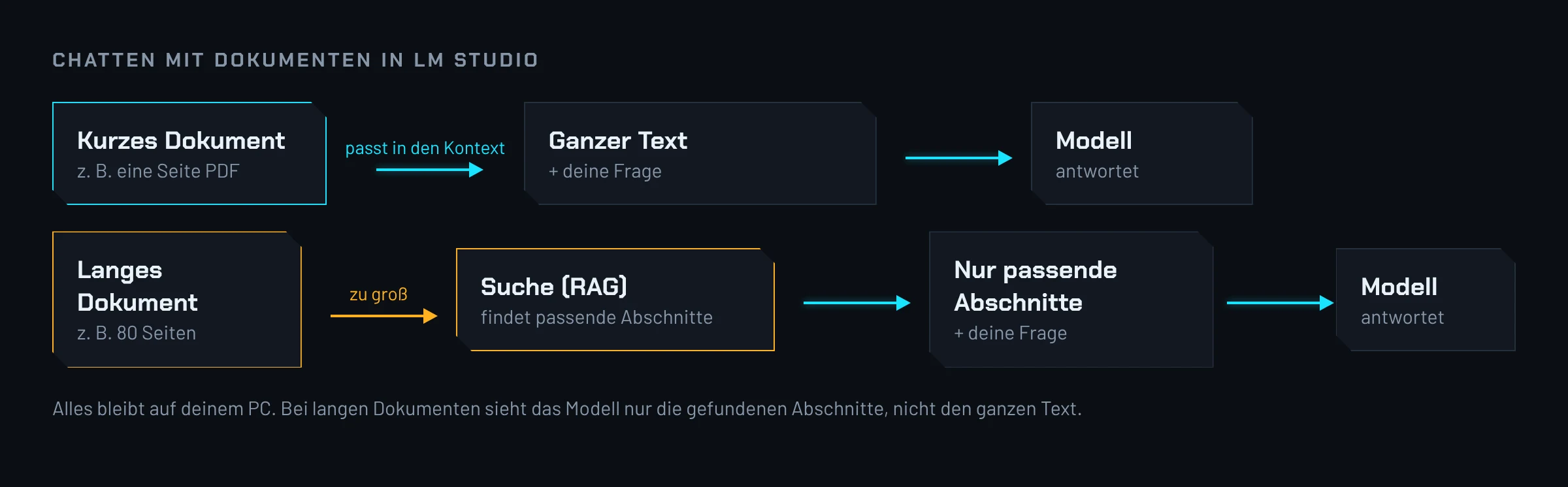
You can drop files into a chat and ask questions about them. Just drag a file into the chat window. LM Studio supports .pdf, .docx, and .txt.
Here’s how LM Studio handles the file:
- Short documents fit entirely into the context. LM Studio then gives the model the full text.
- Long documents are too large for that. LM Studio then looks for the sections that best match your question and gives only those to the model. This is called RAG.
Tip: For long documents, a precise question helps. Use terms that also appear in the document. Instead of “What does it say about costs?” try “How high is the monthly base fee according to the pricing section?”
The documents stay on your PC. According to LM Studio, neither chats nor files leave your device.
8. Optional: Use LM Studio as a server for other programs
LM Studio can make your model available to other programs, for example Open WebUI, AnythingLLM, or your own scripts. It speaks the same language as the OpenAI interface (API).
- First turn on Developer mode (see step 2), then open the Developer section.
- Turn on Start server.
- Enter this address in the other program:
http://localhost:1234/v1
1234 is the port that LM Studio uses in its documentation. If you see a different number on your system, use that one. By default, the server is only reachable from your own PC (localhost). Only allow other devices on the network if you intentionally enable it.
Tip: LM Studio also installs the command-line tool
lms. You can use it to start the server, for example withlms server start.
9. Keep LM Studio and runtimes up to date
LM Studio checks at startup whether a new version is available. New models often need a newer version.
The actual compute work is handled by a runtime. On Windows, this is llama.cpp in different builds, for example for CUDA (NVIDIA) or Vulkan (AMD, Intel). Runtimes are updated separately from the program. LM Studio has its own runtime page for that. You can open it with Strg + Umschalt + R.
On the command line, do this:
lms runtime ls
lms runtime update llama.cpp
Important: If LM Studio says “unknown model architecture” when loading a new model, your runtime is too old. Update LM Studio first, then the runtime.
10. Can I use LM Studio for work?
Yes. Since July 2025, LM Studio is free at home and at work. You no longer need to apply for a separate business license. The terms of use (as of August 23, 2026) allow use for private and internal business purposes. What’s not allowed, for example, is reselling LM Studio or offering it as a service to others.
Only add-on plans for companies are paid, for example with single sign-on or for private sharing within a team.
License: This applies to the LM Studio program. Each model also has its own license.
Common problems
- “Model loading was stopped due to insufficient system resources”: The model probably needs more memory than is available. Choose a smaller variant or lower the context length. More at LM Studio: insufficient system resources.
- “No LM Runtime found”: No suitable runtime is installed. Open the runtime overview and install the llama.cpp runtime for your graphics card. See LM Studio: No LM Runtime found.
- “unknown model architecture”: The model is newer than your runtime. Update LM Studio and the runtime. See GGUF: unknown model architecture.
- Responses are very slow: The model does not fully fit in VRAM. Choose a smaller variant or an MoE model. See Very slow responses.
- The model forgets the beginning or ignores parts of a document: The context length is too small. See Context length too short.
- Garbled answers, endless loops, or characters like
<|im_end|>: The chat template doesn’t match. It’s best to reload the model from the LM Studio catalog. See Wrong chat template. - The AMD graphics card is not being used: Check in the runtime overview whether a Vulkan or ROCm runtime is active. See AMD graphics card not being used.
- Hugging Face download fails: Restart the download and check the free storage space. See Download fails.
- The PC restarts or the screen goes black as soon as the model starts computing: See PC crashes under load.
What’s next?
- LM Studio at a glance
- Ollama as an alternative for the command line
- Open WebUI as a web interface for the LM Studio server
- AnythingLLM for more extensive work with documents
- Models in detail: Qwen3.5 9B, gpt-oss-20b, Gemma 4 31B
- Terms: quantization, context length, tokens per second, hallucination
- VRAM calculator and buying guide
Sources
- LM Studio: Download
- LM Studio Docs: System Requirements
- LM Studio Docs: Welcome to LM Studio Docs
- LM Studio Docs: Getting up and running
- LM Studio Docs: Download an LLM
- LM Studio Docs: Manage chats
- LM Studio Docs: Chat with Documents
- LM Studio Docs: Offline Operation
- LM Studio Docs: User or Developer
- LM Studio Docs: LM Studio in your language
- LM Studio Docs: Per-model Defaults
- LM Studio Docs: Config Presets
- LM Studio Docs: Prompt Template
- LM Studio Docs: LM Studio, llmster, and lms
- LM Studio Docs: Local server basics
- LM Studio Docs: OpenAI Compatibility
- LM Studio Docs: lms runtime
- LM Studio Docs: CLI
- LM Studio Blog: LM Studio 0.3.0
- LM Studio Blog: LM Studio 0.3.16
- LM Studio Blog: LM Studio 0.3.27
- LM Studio Blog: Introducing LM Studio 0.4.0
- LM Studio Blog: LM Studio is free for use at work
- LM Studio Changelog
- LM Studio: App Terms of Service
- LM Studio Models: Qwen3 (1st Generation)
- LM Studio Models: Qwen3.5
- LM Studio Models: Gemma 3
- LM Studio Models: Gemma 4
- LM Studio Models: gpt-oss
- LM Studio Models: Mistral Small
- NVIDIA Blog: How to Accelerate Larger LLMs Locally on RTX With LM Studio
As of: Oct 21, 2026