
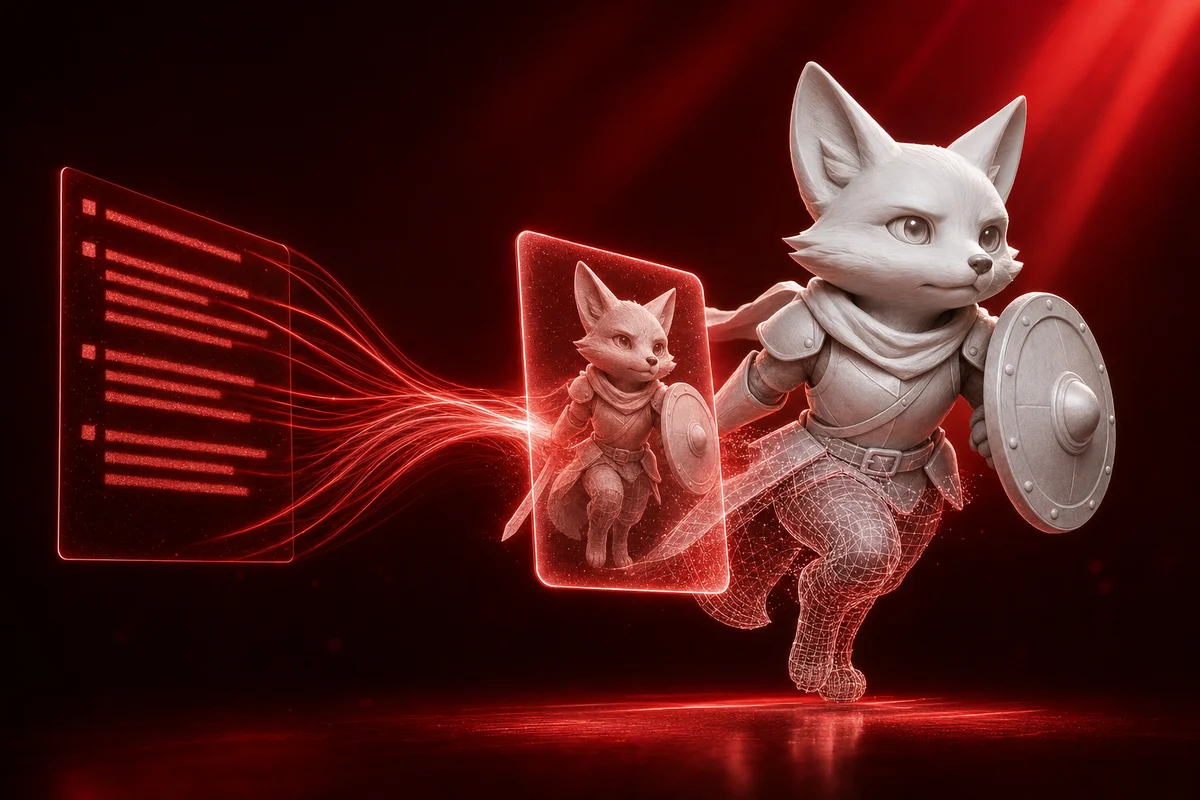
Do you have an idea for a figure, a game object, or a decoration, but no photo of it? Then you do it in two steps: First, an image AI creates the motif from your description, then a 3D AI turns it into a model with texture. Both run for free and locally in ComfyUI on your PC. At the end, you have a GLB file that you can rotate, edit in Blender, or prepare for a 3D printer.
If you already have a photo of the object, you only need the second part – that is covered in more detail in Create a 3D model from photos.
Why take the detour through an image?
There are also models that generate a 3D object directly from text, for example the text variants of the first TRELLIS. But the route through an image has a big advantage: You can see what you’ll get before the 3D step. If you don’t like the image, you can generate a new one in a few seconds. You only start the time-consuming 3D calculation once the motif fits. And current image-to-3D models like TRELLIS.2 are much better than older text-to-3D models.
What you need
- Windows 10 or 11 and ComfyUI in a current version. How to set it up is explained in Your first image with ComfyUI.
- An NVIDIA graphics card, ideally with 12 GB VRAM or more. According to the ComfyUI documentation, FLUX.2 [klein] 4B in the fp8 version needs 8.4 GB. For TRELLIS.2, ComfyUI does not list a minimum; one test ran on an RTX 5070 with 12 GB, and users also report 8 GB with smaller settings – no guarantee. The two models run one after the other, not at the same time.
- At least 16 GB RAM and about 30 GB of free space for the models.
License: [FLUX.2 [klein] 4B](/modelle/flux2-klein-4b/) is under Apache 2.0, TRELLIS.2 under MIT. According to Comfy, the TRELLIS.2 version built into ComfyUI no longer includes any parts with a Non-commercial license. Do not use the larger FLUX.2 [klein] 9B variant if you want to sell the results – it is under a non-commercial license.
Part 1: Create the image
1. Open the image template
Open the templates in ComfyUI (Templates in the left sidebar) and load FLUX.2 [Klein] 4B: Text to Image. Download missing models with Download all. Exactly how to do that, and what to watch out for with 8 GB cards, is explained step by step in Your first image with ComfyUI (steps 7 and 8).
2. Build the prompt correctly
A nice image is not yet a good 3D reference. The 3D AI needs to see the object completely and clearly separated. Based on user reports, these building blocks have proven useful – there is no official recommendation from Microsoft or Comfy for this:
| Building block | Why | In the prompt |
|---|---|---|
| A single object | Several things merge into one blob | a single ... |
| Fully in frame | Cropped parts will be missing later in the model | full body, entire object visible, centered |
| Neutral background | The template isolates the object more cleanly | on a plain white background |
| Three-quarter view | Shows front and side, and the back is easier to guess | three-quarter view |
| Soft light | Otherwise hard shadows become dark spots in the texture | soft even studio lighting, no harsh shadows |
| Compact shape | Very thin parts (hair, spears, threads) turn out holey | sturdy, chunky proportions |
Example for a figure to print:
a single cute fox knight figurine with a round shield, chunky proportions,
full body, entire figure visible, centered, three-quarter view,
on a plain white background, soft even studio lighting, no harsh shadows,
matte painted resin look
Example for a game object:
a single ornate wooden treasure chest with iron fittings, closed lid,
entire object visible, centered, three-quarter view from slightly above,
on a plain white background, soft even lighting, detailed stylized game asset
More about writing prompts is in Good prompts for images.
3. Generate and choose the best image
- Start with Ctrl + Enter. With the distilled version, one image only takes a few seconds.
- Feel free to generate several variants (different seed) and choose the one where the object is clearest – not necessarily the prettiest.
- The images are in the
ComfyUI/output/folder.
Good reference: whole object, free edges, no overlaps, calm surfaces.
Bad reference: cut-off feet, object half hidden, text or patterns made only of light, glass and reflections.
Part 2: Turn the image into a 3D model
4. Open the 3D template
- Open the “Pixal3D & TRELLIS.2: Image to Model” template (in Templates in the 3D section or through search). It has been included without extra nodes since ComfyUI v0.34.0.
- Set the “Switch to Trellis2” switch to
true. Then the template uses TRELLIS.2 from Microsoft instead of Pixal3D (see the license note in Create a 3D model from photos for background). - Download missing files the same way as for the image template. Which files belong in which folders is listed in the table in Create a 3D model from photos, step 3.
5. Load the image and start
- In the Load Image node, click upload and choose your image from
ComfyUI/output/. - Start with Ctrl + Enter. The template first isolates the object with BiRefNet, then calculates the shape, and finally the texture. Depending on your graphics card and settings, this takes a few minutes.
- The result appears in the preview window and can be rotated with the mouse. The preview only shows rough colors – the full texture is in the saved file.
The finished model is saved as a GLB in the ComfyUI/output/3d/ComfyUI/ folder. GLB is a mesh with PBR texture in a single file.
6. If something looks off
| Problem | What helps |
|---|---|
| Error “out of memory” | Lower texture resolution to 2048 or 1024, shape resolution to 512, restart ComfyUI. See CUDA out of memory. |
| Back side looks strange | Use an image in three-quarter view or recalculate the 3D model with a different seed |
| Holes or missing thin parts | Ask for more compact shapes in the image prompt (chunky, thick), leave out thin appendages |
| Background remnants on the model | Generate an image with pure white as the background |
| Dark spots in the texture | Softer light in the image prompt, no harsh shadows |
| FBX file is broken | Use GLB or OBJ – in one test, the FBX output was corrupted |
If you start ComfyUI with --use-ck-attention, leave that option off for 3D: according to test reports, it causes the shapes to become faulty without being noticed.
And then?
- View and edit: Open the GLB in Blender via File → Import → glTF 2.0.
- 3D printing: AI models usually have no true size and often have small holes. How to turn that into a print-ready file is explained step by step in Print an AI 3D model.
- For games: Most game engines can load GLB directly, for example Godot.
You can find all the ways to do 3D with AI – from one photo, from many photos, from text, and for the 3D printer – collected under Create 3D models with AI.
Sources
- ComfyUI Docs: TRELLIS.2 and Pixal3D (template, files, workflow)
- Comfy Blog: TRELLIS.2 and Pixal3D are now native
- Microsoft TRELLIS.2 (GitHub, MIT license, resolutions 512 to 1536)
- [ComfyUI Docs: FLUX.2 [klein] (memory usage of the fp8 version)](https://docs.comfy.org/tutorials/flux/flux-2-klein)
- [Black Forest Labs: FLUX.2 [klein] 4B (Hugging Face, Apache 2.0)](https://huggingface.co/black-forest-labs/FLUX.2-klein-4B)
As of: Oct 26, 2026