
In this guide, you’ll use the LTX-2.3 video model from Lightricks to create a five-second video in ComfyUI. You’ll use the official template, download the required files into the right folders, and learn the few settings that really matter. In the end, you’ll turn your own image into a moving video.
What you need
- Windows 10 or 11 with a current ComfyUI installation. If you don’t have ComfyUI yet, first follow the guide Set up ComfyUI and create your first image.
- An NVIDIA graphics card. For LTX, Lightricks says you need at least 16 GB VRAM for smaller videos and recommends 32 GB or more. The overview in step 2 shows what that means for your card.
- Free storage space: The files for the template together are about 40 GB. Lightricks recommends more than 100 GB of free space for models and cache.
- A stable internet connection for the download.
- Basic English skills for the description (the prompt). The model card lists English as the model language.
1. What LTX can do
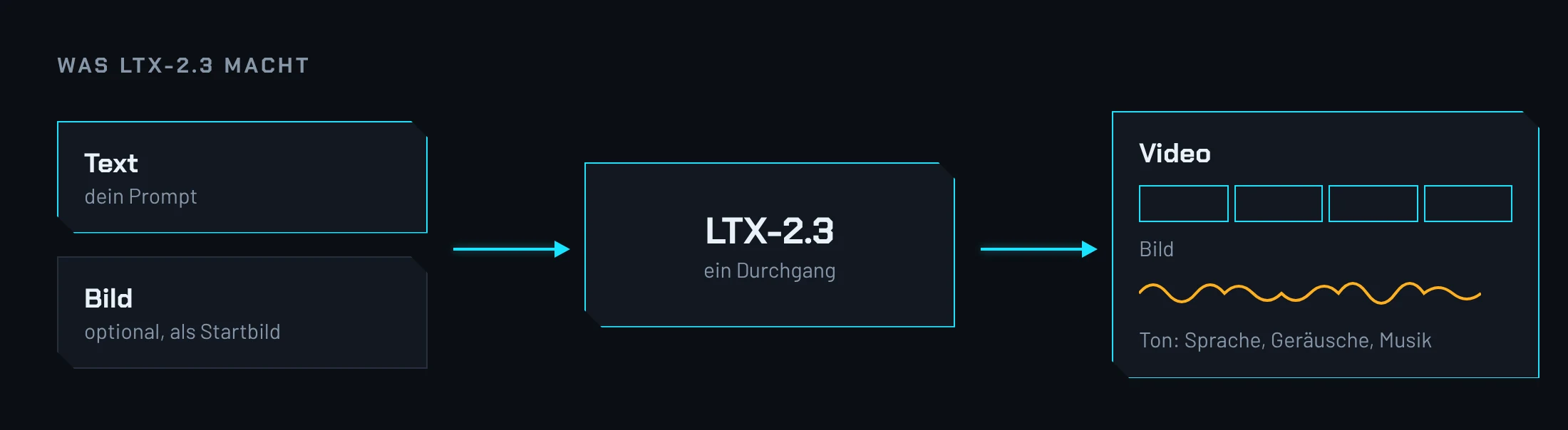
LTX-2 and its successor LTX-2.3 are open video models from Lightricks. According to the maker, they generate image and sound together in one pass: motion, speech, background noise, and music. That sets LTX apart from many other video models that only produce silent clips.
In ComfyUI, LTX-2.3 has official templates for:
- Text to Video: You describe a scene, and LTX creates the video with sound.
- Image to Video: An image becomes the first frame of the video and then gets animated.
- First and Last Frame to Video: LTX fills in the motion between two images.
- Image and Audio to Video: A person in an image moves their lips to match an audio track.
In this guide, you’ll use the first two.
Important: According to the model card, sound without speech may sound worse than dialogue. Readable text and logos are still not reliable, according to Lightricks’ prompt guide.
2. Is LTX a fit for your graphics card?
Video models need much more graphics memory than image models. Lightricks’ official specs are cautious: the ComfyUI extension documentation calls for 32 GB VRAM or more, while the Lightricks blog says LTX needs at least 16 GB for smaller videos. Our estimates for the fp8 versions are on the model pages.
| VRAM | What’s realistic |
|---|---|
| 8 GB | LTX-2 and LTX-2.3 are far below the official minimum. Better choose a smaller video model like Wan 2.2 TI2V 5B. |
| 12 GB | Also below the official minimum. The older LTX-Video 0.9.8 series has a 2B variant for low VRAM, according to the model card, but there’s no official ComfyUI workflow from Lightricks for it. |
| 16 GB | Official lower limit for smaller videos with LTX-2.3. Expect to reduce resolution and length. |
| 24 GB | Our estimate for LTX-2.3 in fp8 is about 23.5 GB, and for LTX-2 about 20.5 GB. The template runs here with a little room to spare in the settings. |
| 32 GB and more | Recommended by Lightricks. Here you have enough headroom for higher resolutions and longer clips. |
You can also check whether your card is enough with our calculator.

Tip: In August 2026, LTX-2.5 was released. ComfyUI has its own templates for it (“LTX-2.5: Text to Video”). The files are larger, and Lightricks also lists 32 GB VRAM as the documented minimum here. For getting started, this guide stays with LTX-2.3 because ComfyUI has the most detailed official guide for it.
3. Understanding the license
License: LTX-2 and LTX-2.3 are under the LTX-2 Community License Agreement from January 5, 2026. We rate it as “restricted.” That means:
- Free, including commercial use, as long as you (or your company) have less than US$10 million in annual revenue. The limit counts all affiliated companies and subsidiaries together. If you use LTX for your employer, your employer’s revenue counts.
- The license applies in a specific version for your download: According to Lightricks, LTX-2.3 falls under the LTX-2 license until August 11, 2026; newer downloads fall under the LTX-2.x license. Check which version applies to you.
- From US$10 million in annual revenue, you need a paid commercial license from Lightricks. Anyone using it commercially without one is violating the license and, according to the contract text, must pay the due license fees plus a contractual penalty of double that amount.
- Your videos belong to you: Lightricks makes no claim to the rights to what you create. But you are responsible for the inputs and outputs.
- Usage bans (Appendix A): among other things, no deepfakes of people without their consent, no harassment or defamation, and no content that harms minors. If you publish generated content, you must clearly label it as machine-generated.
- You may not use LTX in a product that directly competes with Lightricks’ commercial offerings without a separate license.
- You may only share your own further developments, such as self-trained LoRAs, under the same license.
LTX-2.5 is under a newer version (LTX-2.x Community License from August 11, 2026) with the same US$10 million revenue threshold. Always read the original text before commercial use (link under sources). More on this topic: License in the glossary.
4. Update ComfyUI
LTX-2.3 is built into ComfyUI, so you don’t need any custom nodes. But the templates require a current version. The ComfyUI documentation says it clearly: update ComfyUI first.
- Desktop app: The app updates automatically. For ComfyUI inside it, open the Manage section and there the Update tab. The Stable channel is selected by default. You can also check via Help → Check for Updates.
- Portable version: In the
ComfyUI_windows_portablefolder, open theupdatesubfolder and runupdate_comfyui_stable.bat(stable version) orupdate_comfyui.bat(latest development version). Wait until the window finishes. You do not need the third fileupdate_comfyui_and_python_dependencies.bat; according to the documentation, it can cause conflicts. - Restart ComfyUI afterward.
Important: According to ComfyUI, new features in the desktop app only arrive with stable releases. If a template can’t find nodes, your version is probably still too old.
5. Open the LTX-2.3 template
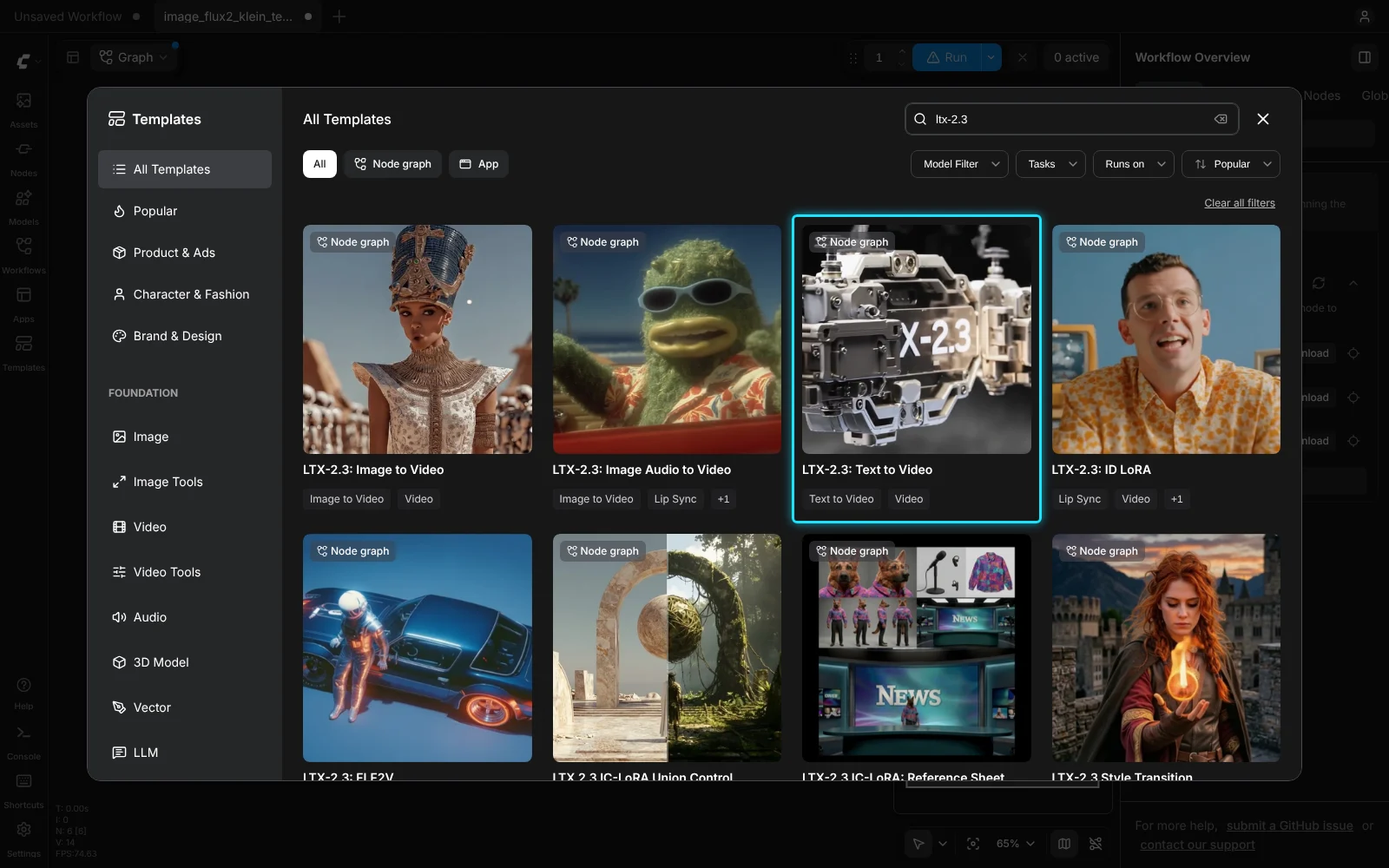
- Click the Templates icon in the left sidebar. You can also open the menu via the Comfy logo at the top left and choose Browse Templates. Type
ltx-2.3in the search field. - Switch to the Video category or search for “LTX-2.3”.
- Choose LTX-2.3: Text to Video.
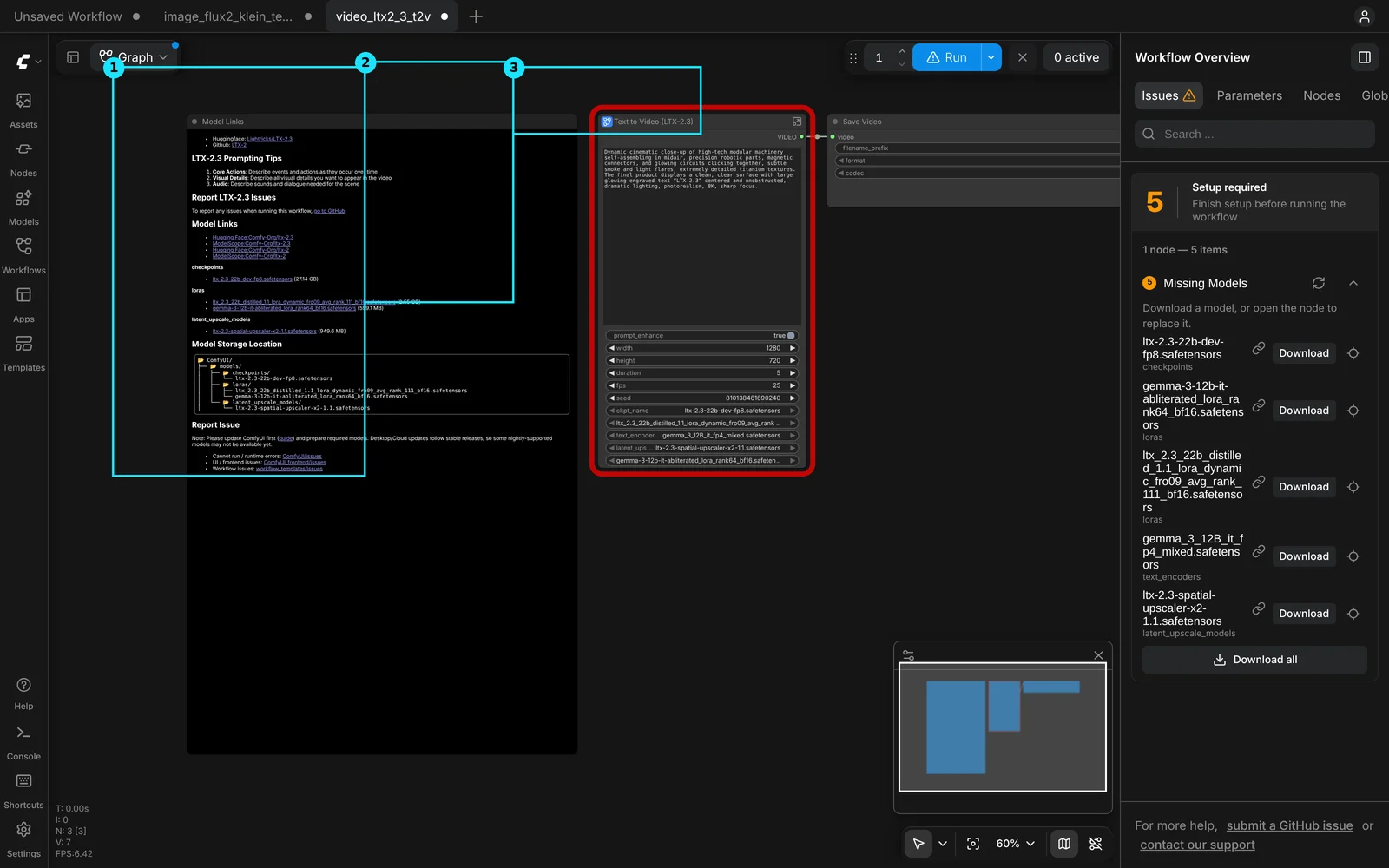
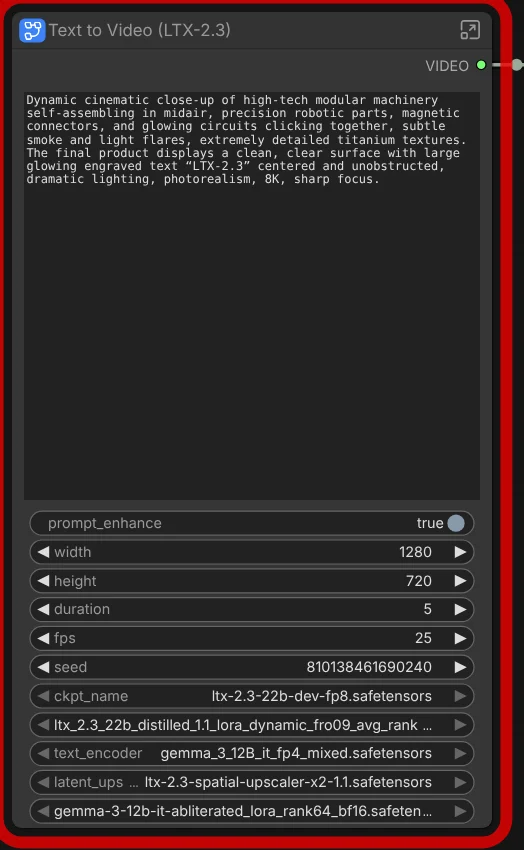
The template opens as a new workflow. You’ll mainly see a large block with all the important settings, next to it a block for saving the video, and a note with model links and prompt tips. The large block is a so-called subgraph: it combines many individual steps so you only see the important fields.
6. Download the model files
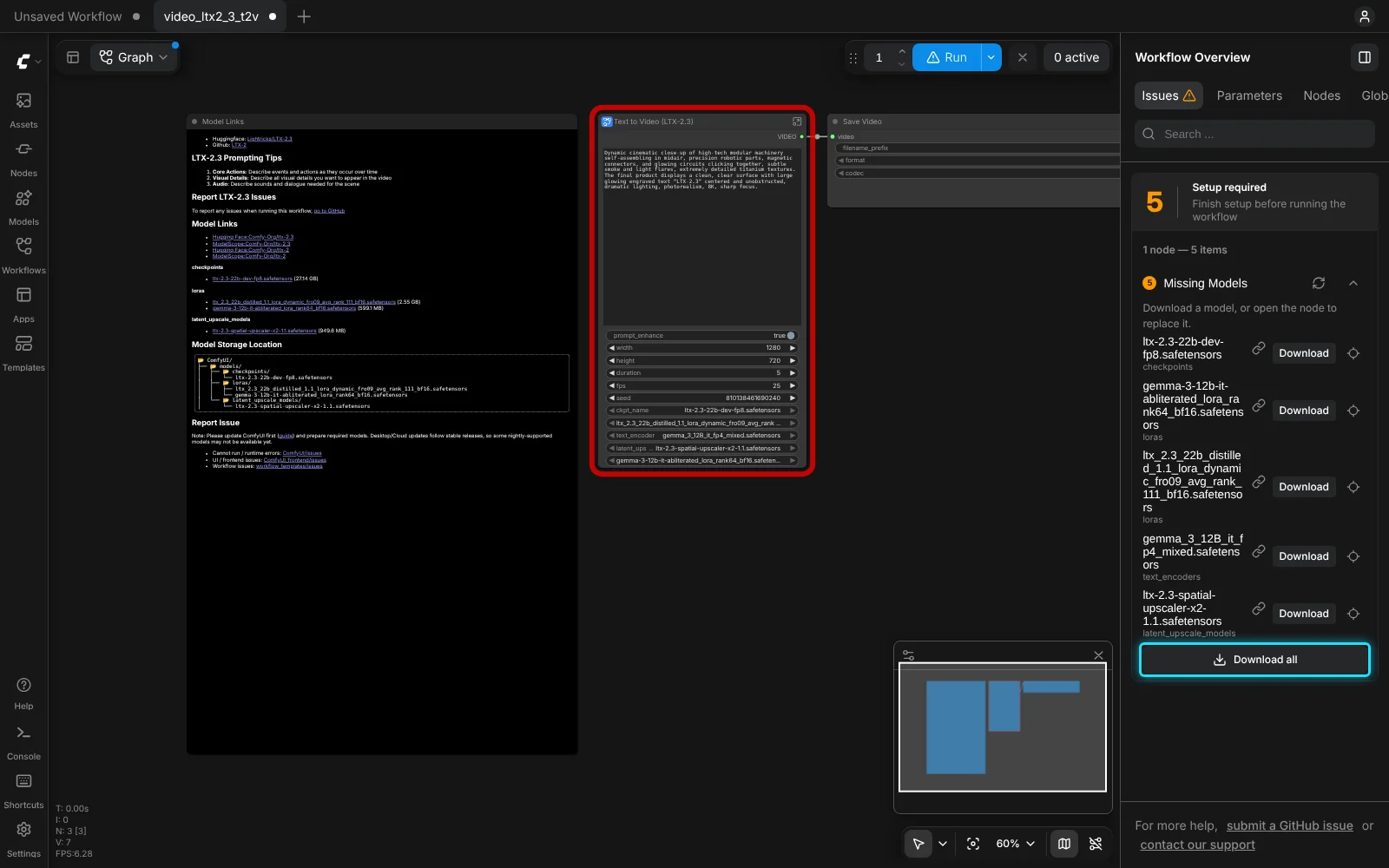
If files are missing, ComfyUI marks the affected blocks in red and shows a notice at the top right like “5 issues found” with View details. Click it to open the Issues tab on the right (called Errors in parts of the docs) with Setup required and the Missing Models section. There you can download each file individually with Download or all of them with Download all. In the desktop app, they are automatically placed in the matching subfolder of ComfyUI/models.
If that doesn’t work for you (for example in the portable version), download the files yourself using the links in the template note and place them like this:
| File | Size according to template | Folder |
|---|---|---|
ltx-2.3-22b-dev-fp8.safetensors (main model) | 27.14 GB | models/checkpoints |
gemma_3_12B_it_fp4_mixed.safetensors (text encoder) | 8.8 GB | models/text_encoders |
ltx_2.3_22b_distilled_1.1_lora_dynamic_fro09_avg_rank_111_bf16.safetensors (distillation LoRA) | 2.55 GB | models/loras |
gemma-3-12b-it-abliterated_lora_rank64_bf16.safetensors (LoRA for the text encoder) | 599.1 MB | models/loras |
ltx-2.3-spatial-upscaler-x2-1.1.safetensors (upscaler) | 949.6 MB | models/latent_upscale_models |
You don’t need your own VAE: in LTX-2.3, it’s bundled with the main model in one file. The size information for most files is in the template note, and for the text encoder in the LTX-2 template note. Depending on your connection, the download takes anywhere from half an hour to several hours.
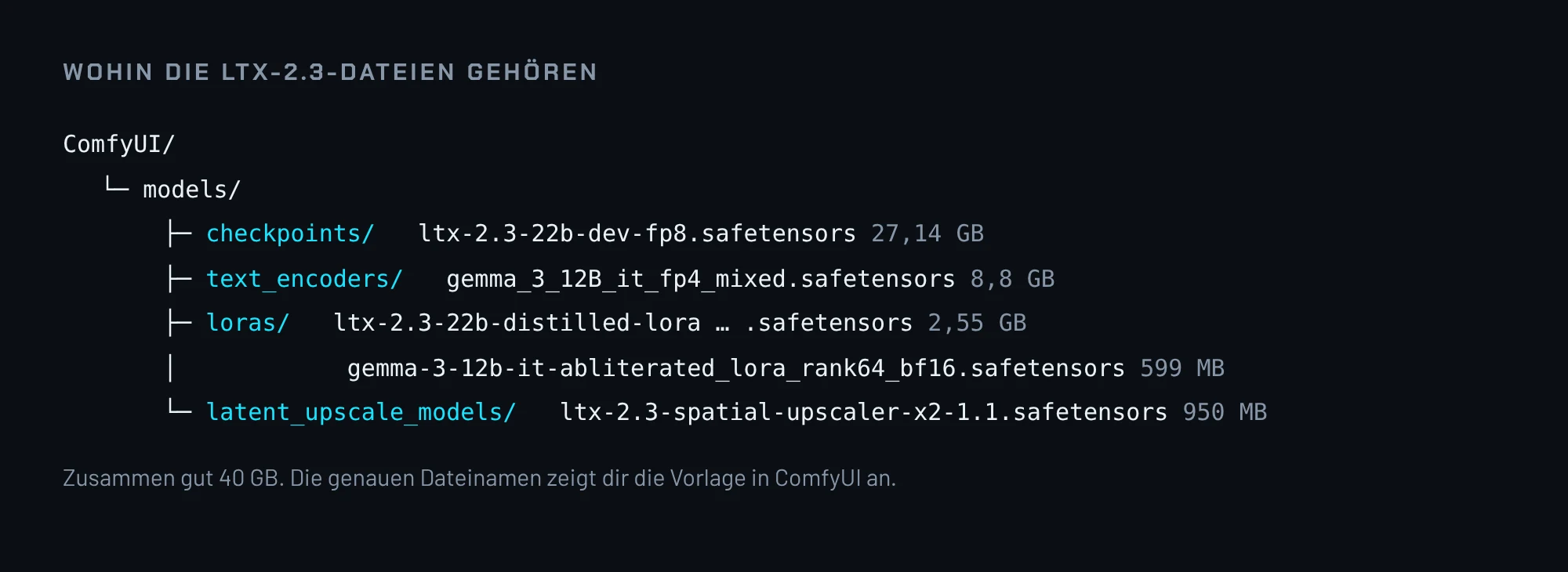
Important: The files for LTX-2 and LTX-2.3 are not interchangeable. According to Lightricks, a LoRA only works with the model it was trained for. Make sure all files belong to LTX-2.3.
Tip: If a file is inside a subfolder, the check won’t recognize it. In that case, select it directly in the block’s dropdown field.
Once everything is loaded, click Refresh or press R in ComfyUI to reload the list. The red markings should disappear.
7. The most important settings
In the template’s large block, you’ll find these fields. The default values come directly from the official template:
| Field | Default | Meaning |
|---|---|---|
prompt (for text to video without a label) | Sample text | Your scene description in English. |
prompt_enhance | on | Automatically expands your description before starting. |
width / height | 1280 × 720 | Width and height of the video (see resolution). |
duration | 5 | Length of the video in seconds. |
fps | 25 | Frames per second (see frames and FPS). |
seed | random number | Starting point for randomness. The same seed and the same settings produce the same video. |
Below that are the dropdowns for the model files from step 6. You don’t need to set the number of compute steps (steps): the template combines the dev model with the distillation LoRA and fixed steps, then follows with a short upscaling pass. According to the model card, the distilled version uses 8 steps and CFG 1.
Keep in mind:
- Width and height should be divisible by 32, according to the model card. If a value doesn’t fit, the model pads and then crops it, according to the model card. The template value 720 is not divisible by 32, but it is adjusted automatically. If you want custom values, use numbers divisible by 32.
- The frame count should be in the form “multiple of 8 plus 1” according to the model card (for example 97 or 121). In the template, you only enter seconds and FPS; the frame count is calculated from that.
- For the first test, Lightricks recommends small values in its ComfyUI documentation: 480 × 720 and 41 to 81 frames for faster runs. If you have little VRAM, that’s the best place to start. At 25 FPS, 2 to 3 seconds fall into this range.
8. Create your first video
- Replace the sample text in the
promptfield with your own description. An example in the style of the Lightricks guide:
A medium shot of an old fisherman with a grey beard and a yellow raincoat standing on a wooden pier at dawn. He slowly lifts a lantern and looks out over the calm sea while gentle waves splash against the posts. Soft golden light breaks through low fog, seagulls cry in the distance. The camera slowly dollies in toward his face as he quietly says, „The sea is calm today.“- Click Run (bottom or top in the toolbar, depending on your version).
- Wait. The first run takes longer because ComfyUI has to load the models into memory first. Later runs are faster. How long a video takes depends heavily on your graphics card.
- ComfyUI highlights the block currently being computed and shows a progress bar.
When the video is done, it appears in the Save Video block and can be played there with sound.
9. Where the video is saved
ComfyUI saves finished videos in the output folder of your ComfyUI installation. The template stores them there in the video subfolder, and the file name starts with LTX_2.3_t2v, followed by a running number.
- Desktop app: Input and output folders are located by default under
%LOCALAPPDATA%\Comfy-Desktop\ComfyUI-Shared. Older installations use%USERPROFILE%\ComfyUI-Shared. - Portable version: in the
ComfyUI\output\videofolder inside the extracted directory.
Tip: If you drag a finished video back into the ComfyUI window, ComfyUI loads the workflow that created it. That way you can recreate any result later.
10. Turn an image into a video
- Open the templates as in step 5 and choose LTX-2.3: Image to Video. It uses the same model files, so you don’t need to download anything else.
- In the Load Image block, a sample image (
egyptian_queen.png) is set. Click the upload field and choose your own image. - In the
promptfield, describe what should happen in the video: motion, camera, sound. Anything already visible in the image only needs a brief mention. - Click Run.
Your image becomes the first frame of the video. In this template, prompt_enhance is off by default so your description is used exactly as you write it. Finished videos end up in the same folder with the name LTX_2.3_i2v_….
Tip: The aspect ratio of your image should match
widthandheight. For a portrait image, swap the two values. According to the template description, LTX-2.3 supports portrait orientation better than LTX-2.
11. Writing better prompts
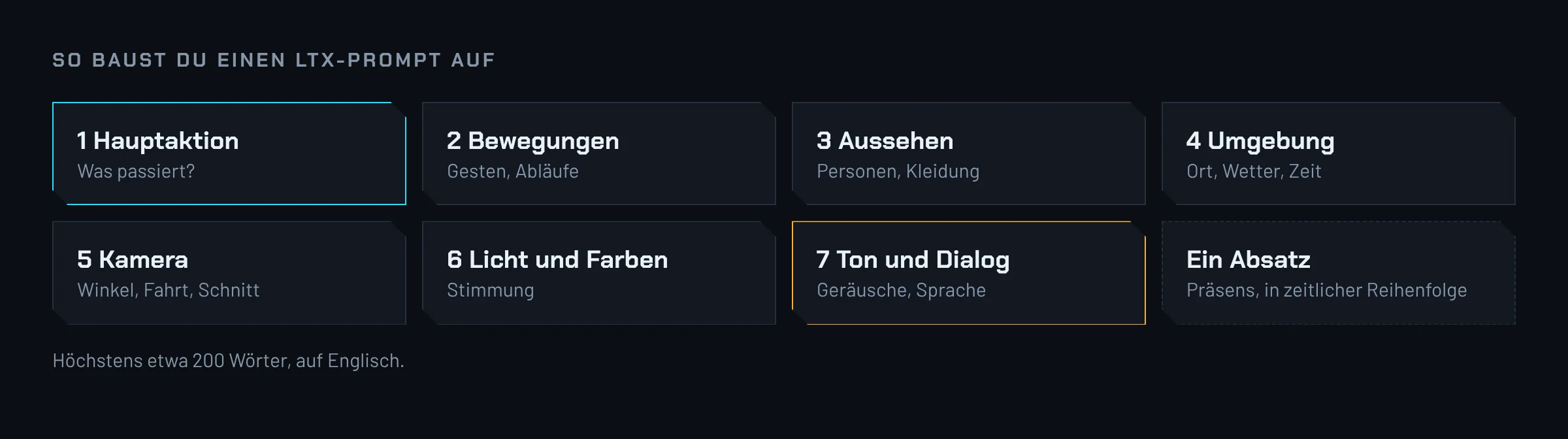
Lightricks has its own guide for LTX prompts. The most important points:
- One connected paragraph, about 4 to 8 sentences, at most around 200 words.
- Start with the main action and describe events in chronological order, in the present tense.
- Describe people precisely: age, hairstyle, clothing, distinctive features. Show feelings through visible signs instead of words like “sad.”
- Environment and lighting: lighting mood, colors, surfaces, weather like fog or rain.
- Camera: terms like “dolly in,” “handheld tracking,” “pans across,” or “static frame.” Also describe what the image looks like at the end of the movement.
- Sound: name noises and music. Put spoken words in quotation marks, with language and accent if needed.
- Avoid: text and logos, very hectic motion like jumping or juggling, too many people, and conflicting light sources.
- Start simple and add details step by step.
Common problems
- “CUDA out of memory” or “Allocation on device”: Not enough graphics memory. First reduce
width/height(for example to 480 × 720 or 720 × 480) andduration(2 to 3 seconds). Close other programs that use the graphics card. See CUDA out of memory and Allocation on device. - “Value not in list” at startup: A model file is missing or in the wrong folder. Check the table in step 6 and then press
R. See Value not in list. - “Missing Node Types”: Your ComfyUI version is too old for the template. Update ComfyUI as in step 4. See Missing Node Types.
- “mat1 and mat2 shapes cannot be multiplied”: Usually files from LTX-2 and LTX-2.3 are mixed up. Select the LTX-2.3 files in all dropdowns. See mat1 and mat2 shapes.
- Download stops or gets stuck: See Hugging Face download stops.
- “Error while deserializing header” or “incomplete metadata”: The file is incomplete. Delete it and download it again. See Error while deserializing header and incomplete metadata.
- “Reconnecting” during computation: The connection to ComfyUI was interrupted. See Reconnecting.
What’s next?
- ComfyUI at a glance
- Model pages: LTX-2.3, LTX-2, LTX-Video 0.9.8, Wan 2.2 TI2V 5B, Wan 2.2 A14B
- Glossary: VRAM, Frames and FPS, fp8, Distillation, Text Encoder, Workflow
- VRAM calculator: will a model fit on your card?
- Buying guide: which graphics card for video models?
Sources
- ComfyUI Docs: LTX-2.3 in ComfyUI
- ComfyUI Docs: LTX-2 in ComfyUI
- ComfyUI Docs: Workflow templates
- ComfyUI Docs: Update ComfyUI
- ComfyUI Docs: Desktop installation on Windows
- ComfyUI Docs: LTXV (LTX-Video 0.9.5)
- Comfy-Org workflow_templates: video_ltx2_3_t2v.json
- Comfy-Org workflow_templates: video_ltx2_3_i2v.json
- Comfy-Org workflow_templates: index.json (template list)
- Lightricks/LTX-2.3 model card (Hugging Face)
- Lightricks/LTX-2.3-fp8 model card (Hugging Face)
- Lightricks/LTX-Video model card (Hugging Face)
- Lightricks/LTX-2 on GitHub (README)
- Lightricks/ComfyUI-LTXVideo on GitHub (README)
- LTX-2 Community License Agreement
- LTX-2.x Community License Agreement
- LTX Docs: Using ComfyUI with LTX
- LTX Blog: How to install and run an AI video model
- LTX Blog: Run a video generation model locally
- LTX Blog: Prompting guide for LTX-2
As of: Oct 21, 2026